
Step by step instructions below:
- Through your Brand Dashboard, click the Order you wish to upload attachments to.
- On the Order Summary Page’s navigation menu, click ‘Upload Assets’. You’ll be redirected to the Content App.

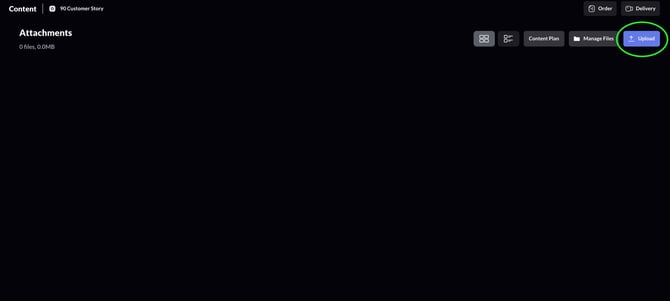
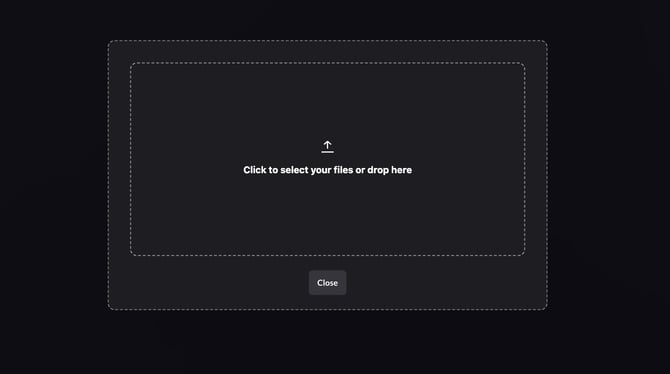
- Click ‘Upload’ to drag and drop your files to the Attachments folder on the Content App.
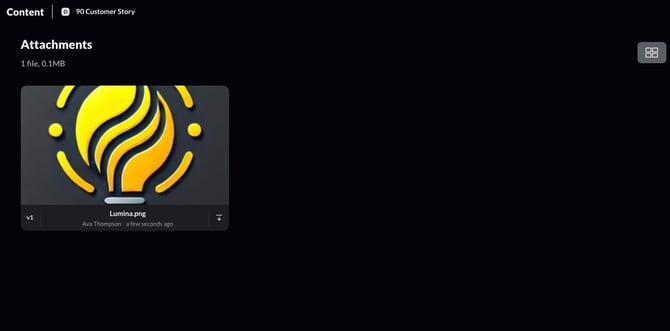
- Your attachments can be now be viewed and downloaded through the Content App.