
Step by step instructions below:
- On your Brand’s dashboard, click on the ‘In Purchase’ filter to view Orders pending payment. Click on the Order you wish to Accept & Pay.
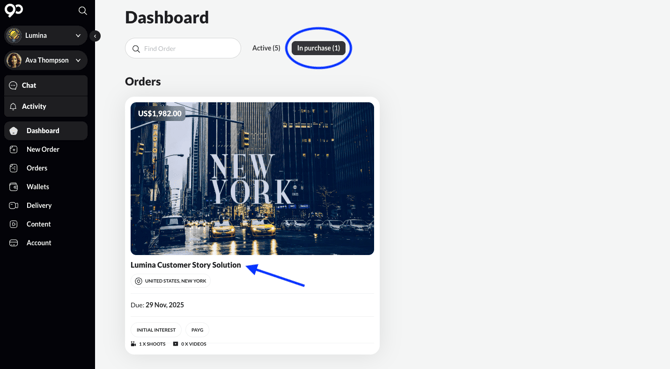
- In the Order Summary Page, click on the blue ‘Accept & Pay’ button on the top right to begin the payment process.
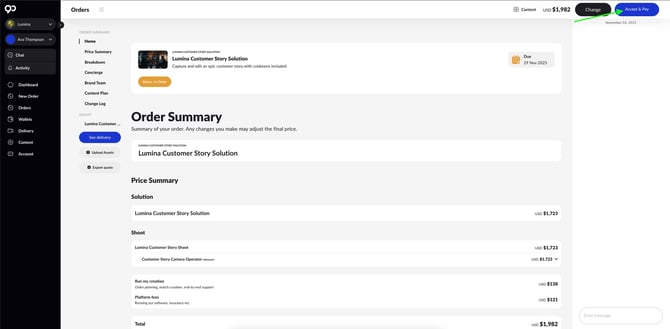
- Under the Accept & Pay page, you’ll have two payment methods to choose from. If you do not have an active wallet subscription, you will have to select ‘On Account’ as the only payment method.
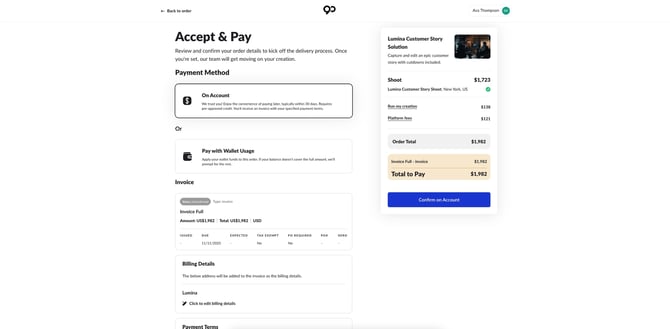
- Click ‘Confirm on Account’ to complete payment. Ensure that you have configured your Billing Details, Payment Terms and Purchase Order settings prior to confirming. Add in your team’s designated Billing Contact as they will be receiving an invoice from 90 Seconds.
- Discuss Payment Terms, methods and other details with the Brand Manager assigned to your Order.
- If you wish to pay via credit card, head to ‘Payment Terms’ and add in your Credit Card details to your account.
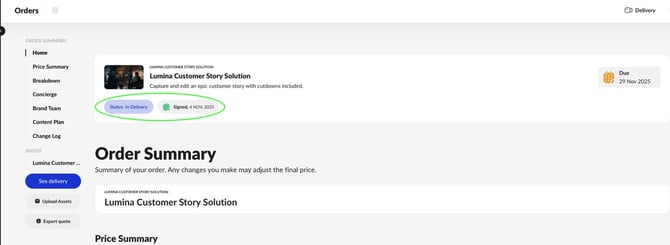
- After confirmation, your Order’s status will change from ‘In Order’ to ‘In Delivery’. It’ll also be marked as ‘Signed’ along with the date of payment.
View the GIF below for a quick overview.