
Now that you’re logged in, let’s take a tour!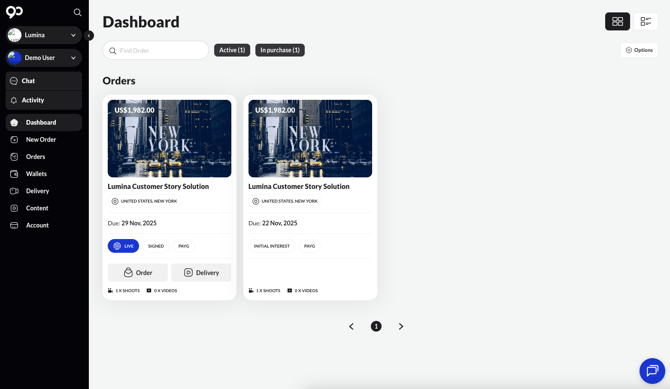
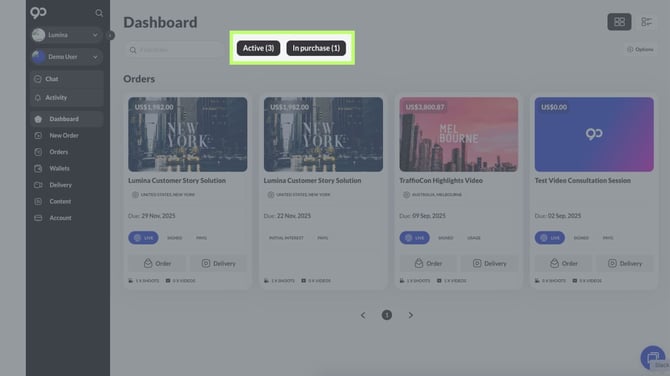
The dashboard is split into 2 sections: the black bar on the left lists all tabs you can access while the grey section houses all past, present and potential work with 90 Seconds. Toggle between the tile or list view by clicking the icons on the top right or filter further by clicking Options. If you need technical help, please click on the chat bubble.
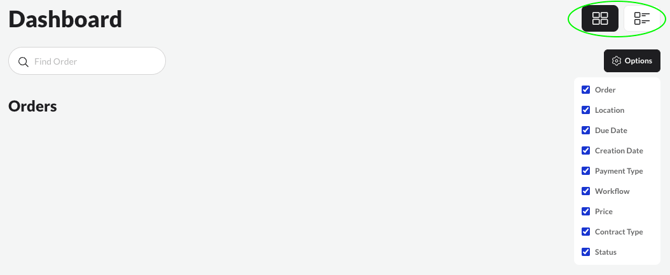
Dashboard Filters
The Navigation Bar sits on the left and allows you to view these important features: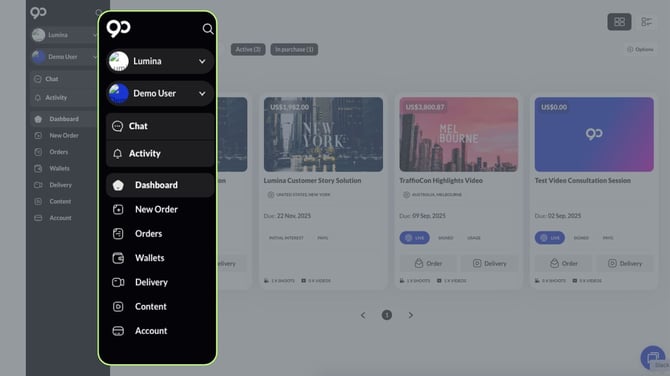
|
Chat |
Displays all communication threads in a user’s current order(s) |
|
Activity |
Displays all activities in user’s current order(s) |
|
Dashboard |
Displays all completed/active/in purchase orders here |
|
New Order |
Access a library of our services and solutions |
|
Orders |
Similar to dashboard |
|
Wallets |
Displays all completed/active/in purchase prepaid wallets |
|
Delivery |
Displays a list of open tasks and deadlines for user’s active orders |
|
Content |
Displays all videos user has created |
|
Account |
Manage user’s Brand Details, My Team and Brand Assets |
Select the Right Dashboard
Users may have access to several dashboards, which are partitioned to provide better management and control over various teams and offices.
It is essential to select the correct Dashboard to accurately view the associated orders and activities.
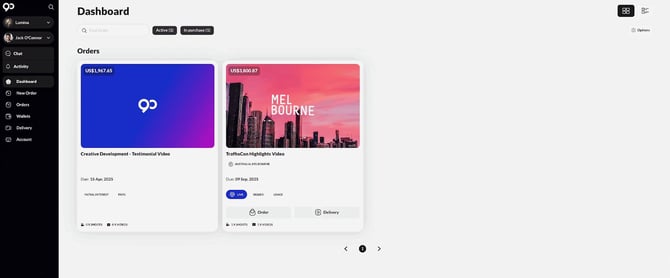
How to Select The Right Dashboard
If you are still unable to view your Order, it is likely you have not been added as a team member on the Order page. You can request your Concierge or Brand Manager to add you so it appears on your Dashboard.
View all orders directly from your Dashboard. Use the Toggle feature at the top to filter.