

Add Team Members to my Brand Dashboard
Before you can add a team member to an order, you need to ensure they have a 90 Seconds login. Let’s now add the new team member to the Platform in 4 easy steps:
Step 1: Click Account on the left-most black bar.
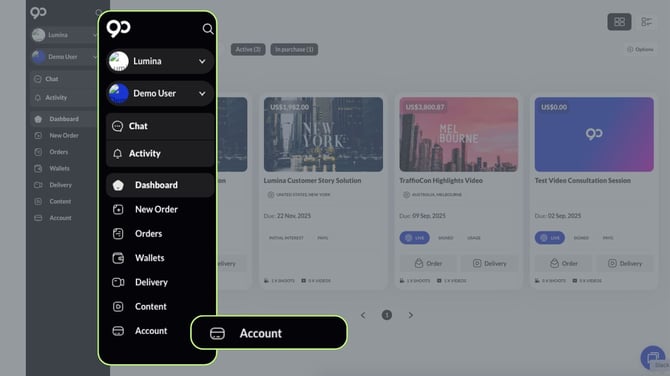
Step 2: Click My Team on the top bar.
Step 3: Click + Add New Member in the blue bubble.
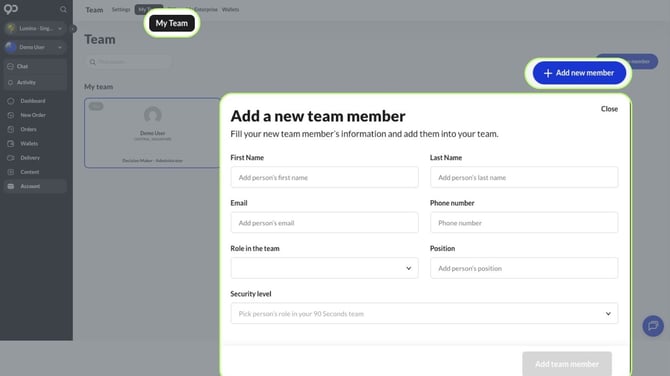
Step 4: Fill in all the information including First Name, Last Name, Email, Role in the team and Security Level. (Optional: Phone Number and Position)
Role In Team
|
Decision Maker |
|
Accounts |
|
Reviewer |
|
Others |
Security Level
|
Administrator |
|
Member |
|
Restricted |
Once a team member is added to the Dashboard, they will immediately receive a 90 Seconds notification in their email inbox to login.
Add Team Members to my Order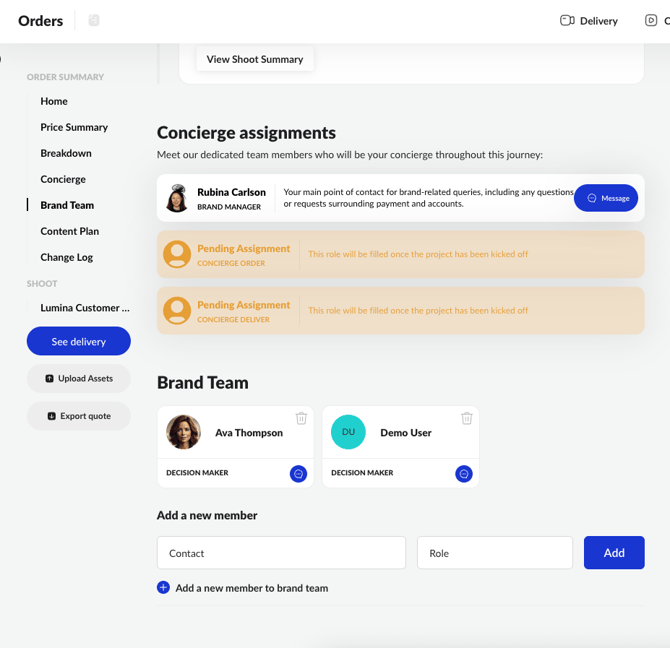
Now that you have added Team Members to your Brand Dashboard, you can begin adding them to specific Orders. Follow these 4 steps:
Step 1: Go to the Order you’d like to add more team members from the Main Dashboard
Step 2: Click Brand Team tab
Step 3: Click on Contact and select member from the list and assign them a Role
Step 4: Click Add
Important: If you have not added the member to the Brand Page, their names will not show up in the Contact list.
How to add team members to Brand Page? Scroll to the top.
You’ve mastered Dashboard Navigation. Next we will be going into platform Orders.